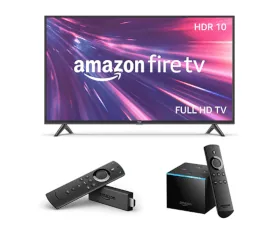
Fire TV gets its apps from Amazon's own store, not Google Play - so the recorder you need comes from a different place than on a phone.
Recording a phone screen takes seconds (see the Android phone or tablet page). A Firestick is trickier: no built-in recorder, no Google Play, and most phone recorders hide their buttons where a remote cannot reach. This page covers every way that works on Fire TV and which devices can record. On a Google-based box like Chromecast or NVIDIA Shield instead? See the Android TV recording guide.
Free download
Get Screen Recording App on Web, iPhone, iPad & Android
Record your screen wherever you are - in your browser on desktop, or with the native app on mobile. No account, no watermark, nothing uploaded.
Why screen recording on Fire TV is harder than it looks
Fire TV runs Amazon's own software, so a few things work differently than on a phone:
No Google Play. Apps come only from the Amazon Appstore, and most phone recorders were never put there.
No built-in recorder. A Fire TV Stick, Cube, or TV has no record button - you install one.
Phone apps need a mouse. Their buttons sit where a remote cannot reach.
Sound often fails. Many recorders capture none; it works only on newer devices.
The free computer tool is limited. ADB caps at about 3 minutes, records no sound, and needs a PC.
The newest sticks cannot run apps. Amazon's 2025-on sticks switched to software that blocks them (check yours below).
Ways to record a Fire TV screen
Four options that work. The first needs only your remote; the rest need a computer or cables.
Easiest
Screen Recorder App from the Amazon Appstore
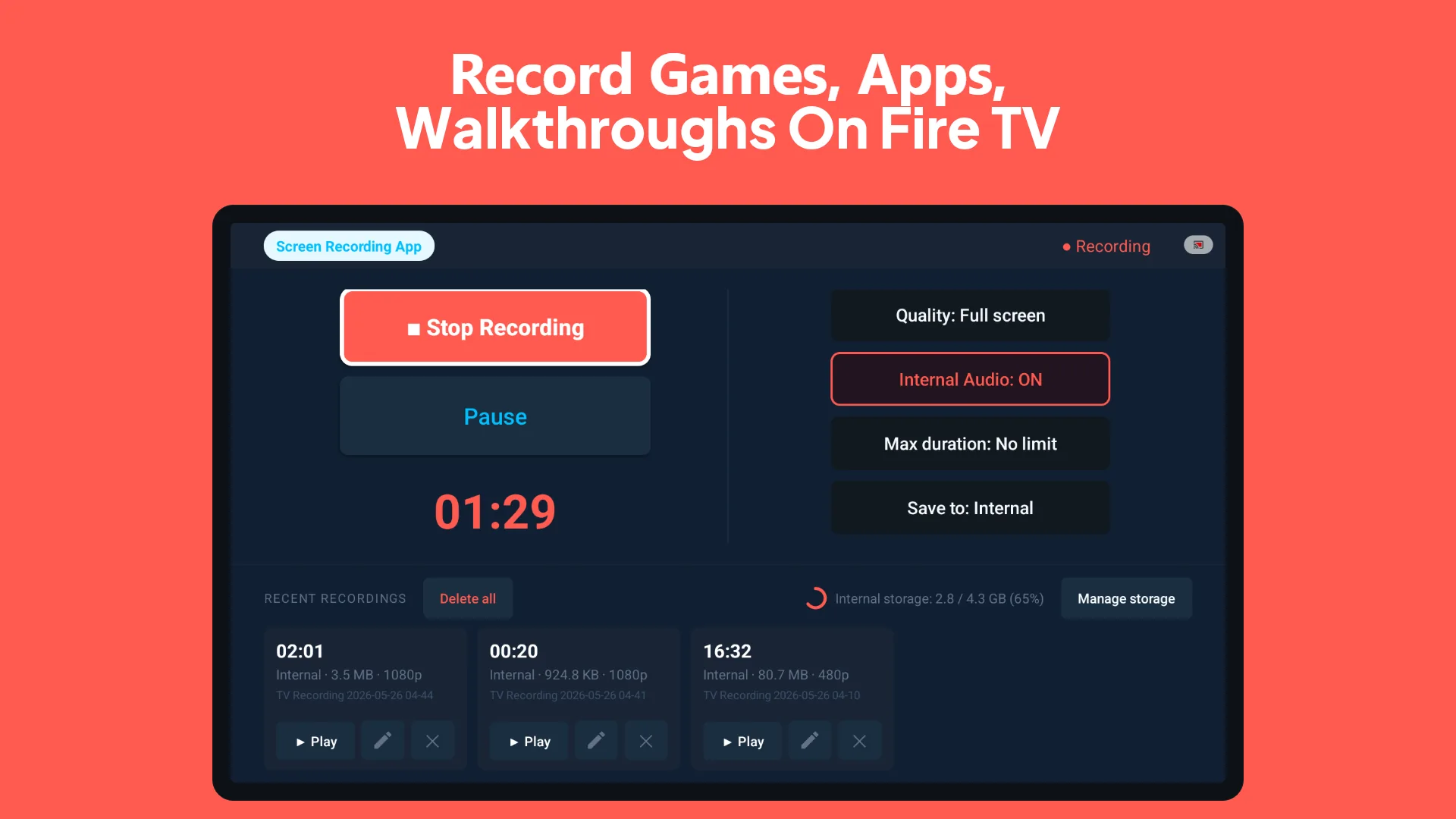
Install it straight from the app store on the device and use it with your normal Fire TV remote. No computer, no cables, no mouse, no Google account. It records video, adds sound on newer devices, and keeps everything on the device. See how it works.
For advanced users
Free computer tool (ADB)
Free, but you run it from a computer. Stops after about 3 minutes and records no sound.
Extra gear
HDMI capture device
Best quality. Needs a capture gadget ($15-80), an extra box to remove copy protection, cables, and a computer.
Nothing to install
Mirror to a computer
Send the Fire TV picture to a Windows PC and record it there. Easy, but it lags and looks softer.
1. A screen recorder app from the Amazon Appstore
The easiest route, as long as the app was actually made for Fire TV. One that was uses the normal remote for everything - no mouse, no computer, no cables. You install it from the app store, open it from the Fire TV home row, change the settings with the arrow buttons, and start recording. It keeps recording in the background while you use other apps as usual.
FreeRecords sound (newer devices)No computer neededNo time limitNo mouse
Screen Recording App is a free option built for this - it runs from the home row, works entirely with the remote, and records sound on newer devices. No account, nothing uploaded. You can also hold the voice button and say "screen recorder" to find it.
Works with the remote
Move around the settings, start and stop recording, and play clips back using only the arrow buttons and the OK button. No mouse, no extra gadgets.
Records the sound
On newer Fire TV devices, the recording captures the sound from the screen - game audio, app sound, and music - along with the picture. Older devices save the video without sound.
Nothing uploaded
Recordings stay on the Fire TV's own storage or a plugged-in USB drive. No account, no cloud, nothing leaves the device.
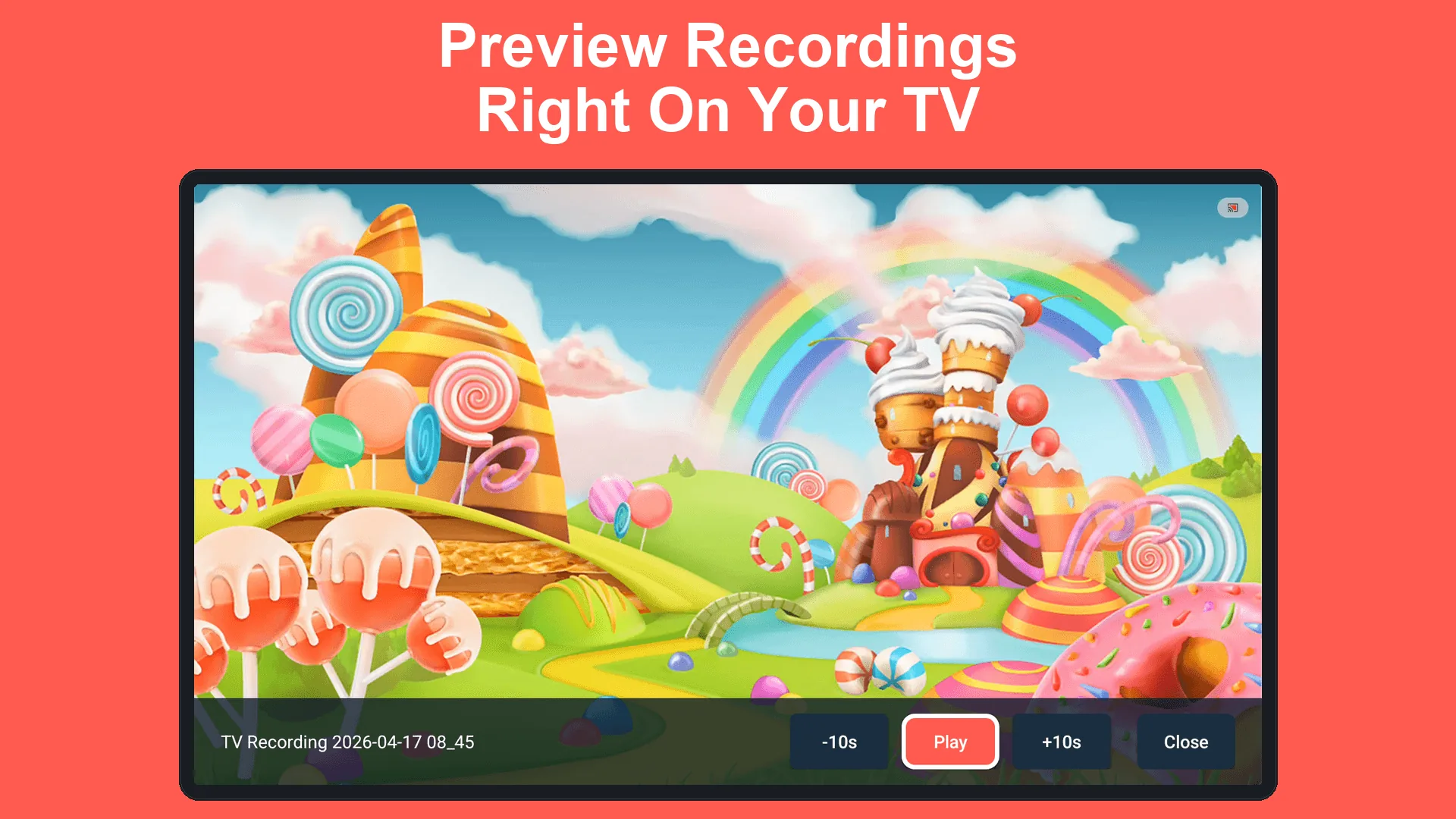
Remote-friendly controls and recent recordingsBuilt-in player so you can watch clips on the TV
2. ADB - a free tool for advanced users
ADB lets a computer control a Fire TV. It can record the screen, but the setup is fiddly - a hidden menu, the tool on a PC, a network connection - and the clips have no sound. Handy if you already know the tool; otherwise the other options are far less hassle.
FreeAbout a 3-minute limitNo soundComputer required
3. HDMI capture device (extra gear)
A capture device sits between the Firestick and a computer and records what passes through. It gives the best quality of any method - but Fire TV's copy protection makes it more involved than it sounds.
$15-80Records soundBest qualityComputer required
You need an extra box to remove the copy protection. Fire TV sends out a copy-protection signal, and a plain capture device just sees a black screen. Most setups add a small powered box that strips that protection out first. That is one more gadget and one more cost.
Cables and software. Plan on the capture device, a cable from the Firestick, the extra box, a cable to the computer, and recording software (free options exist). It takes a few minutes to wire up.
Protected shows still go black. Even with the extra box, apps like Prime Video, Netflix, and Disney+ can blank the picture. That is on purpose and happens with every method.
Best for: recording games, hooking up an older game console through the same setup, or any time you want the very best quality and do not mind the cables.
4. Mirror to a computer, then record there
Turn on Display Mirroring on the Fire TV (Settings, then Display & Sounds), connect from a Windows PC with the Connect panel (Windows key + K), and record the window with any PC recorder - including the free browser-based recorder here. Nothing is installed on the Firestick.
No app on the stickNoticeable lagLower qualitySame Wi-Fi needed
Wireless means lag. The mirrored picture stutters and softens, especially for fast action or games. Fine for a quick walkthrough, annoying for anything that needs to look sharp.
Protected shows still will not play. Apps with copy protection refuse to mirror or show a black frame.
Both devices share one network. The Fire TV and the computer have to be on the same Wi-Fi, and a weak signal makes the whole thing wobble.
What you can and can't record on Fire TV
Some limits come from Fire TV itself, others from the streaming services. They apply no matter which method or app you use.
Records normally
Does not work
Home screen, settings, and menus
Prime Video, Netflix, Disney+, and other paid streaming apps (black or blank picture)
Games and gameplay
Apps that block recording (some banking apps, for example)
Free apps like YouTube, Tubi, and Pluto TV
Anything plugged into the TV's other HDMI sockets (a game console, a cable box)
Sound, on newer Fire TV devices
Sound on older Fire TV devices
Anything you install yourself from the app store
Any app at all on the newest sticks (the ones with the brand-new software)
The black screen on streaming apps is not a recorder fault - it is copy protection built into services like Prime Video and Netflix, and no app or tool can get around it.
Step by step: recording with an app
It works the same for any Fire TV recorder. The button names vary, but Fire TV controls the permission pop-up, so the steps are always these:
Install a recorder from the Amazon Appstore. Find it on the home screen, or hold the voice button and say "screen recorder". It lands in your apps row.
Open the app and choose the quality, sound, and length with the remote.
Start recording. Fire TV asks you to allow screen recording - that pop-up comes from Fire TV, not the app, and you can answer it with the remote.
Use your Fire TV as normal. Switch to games, apps, or menus while it keeps recording in the background.
Stop when you are done - go back to the app and press Stop, or let the timer finish it for you.
Find your recording in the app or in the Movies folder, play it back, then move it off the device (see below).
Getting recordings off your Fire TV
This is the step most guides skip. A Firestick has no easy file browser and no simple way to plug into a phone, so moving a finished clip to where you need it takes a little planning.
Send Files to TV. A free app that sends files over Wi-Fi to a computer or phone running the matching app. The simplest option for most people.
USB drive. Devices with a USB socket (the Cube, many Fire TV sets, or a stick with a small adapter) can save straight to a memory stick, which you then read on a computer.
The computer tool. If you already set up ADB, it can copy the file straight to your computer.
Upload it. Some recorders can hand a clip to a cloud or sharing app on the Fire TV, though that does send the file off the device.
Storage is tight too - sticks have about 8 GB, and video eats roughly 100-200 MB a minute. Move clips off often, or record straight to a USB drive.
Tips for better Fire TV recordings
Close other apps. A Firestick has little power to spare; this cuts stutter.
Lower the quality on older sticks. A smooth lower-quality clip beats a choppy sharp one.
Mind the storage. Delete old clips or record to a USB drive so you do not run out mid-session.
Turn off notifications. They pop up over whatever you are recording.
Restart before a long session. A fresh start frees up memory.
Which Fire TV devices can record
Whether a recorder runs at all - and whether it can capture sound - comes down to how new your device is. To check, go to Settings, then My Fire TV, then About, and look at the software version. A number like 6, 7, or 8 means a recorder app will run. A number that starts with 1 means the brand-new software that cannot run these apps.
Fire TV Stick 4K & 4K Max (2023 and newer)
These run recorder apps and can capture sound. The newer 4K and 4K Max are the sweet spot for recording with sound.
Fire TV Cube
Records well, and the newest Cube can capture sound. It also has a USB socket, which makes saving to a memory stick easy.
Fire TV sets (Omni, 4-Series, Toshiba, Insignia, Pioneer)
Recorder apps work, and newer sets (2023 on) can capture sound. Built-in USB sockets help with storage and moving files.
Fire TV Stick HD (2024)
Runs recorder apps normally. Do not mix it up with the newest HD stick, which uses the brand-new software (see below).
Older Fire TV Stick, Stick Lite, and first 4K stick
Recorder apps still run, but they cannot capture sound - these record video only. Our own test stick, an older 4K one, records and plays back fine without sound.
The newest sticks - apps will not run
Amazon's latest sticks (such as the 4K Select and the newest HD stick) use brand-new software that is not built for these apps. No recorder app works on them. If the About screen shows a version that starts with 1, you cannot install one.
Recording on a Kindle Fire tablet
Fire tablets are the easy cousin of the Firestick. They use the same Amazon app store (still no Google Play), but recent Fire tablets have a screen recorder built in - something Fire TV never got. The Fire tablet screen recording guide covers it step by step; the short version is below.
Built-in recorderTouchscreen, no mouseAmazon app store only
The built-in button. Swipe down twice from the top to open the quick settings, tap Screen record, pick your options, and it starts after a short countdown. Swipe down and tap the notice to stop. Good for fast, simple clips.
When an app helps more. The built-in one is very basic. For control over sound, longer recordings, a face camera, drawing on the screen, or trimming clips, a full recorder app gives you more to work with - and the same Amazon Appstore app that runs on Fire TV also covers Fire HD 8, Fire HD 10, and Fire Max 11.
Same protected-content rule. Prime Video and other protected apps record black on a tablet too. That part does not change.
Frequently asked questions
Common questions about recording on Fire TV, Firestick, and Fire tablets.
Can you screen record on a Firestick?
Yes. There is no built-in recorder, but you can install one from the Amazon Appstore and use it with the remote. Advanced users can also record from a connected computer or with a capture device. The only exception is Amazon's newest sticks, which use brand-new software that cannot run these apps.
Does Fire TV have a built-in screen recorder?
No. Fire TV Sticks, the Cube, and Fire TV sets have no record button of their own. Kindle Fire tablets do have a built-in recorder, but Fire TV devices do not, so you need an app or another method.
How do I record my Fire TV screen with audio?
Use an app from the Amazon Appstore on a newer Fire TV device (from about 2023 on) - that is where recording sound works. Older sticks record video without sound, and the free computer tool never records sound at all.
Why is my Fire TV recording a black screen?
Streaming apps like Prime Video, Netflix, and Disney+ use copy protection that blocks recording, so the picture comes out black or purple. Fire TV enforces this itself, not the recorder, and it happens with every method - apps, the computer tool, and even capture devices without an extra copy-protection-removing box.
Do I need a computer or a mouse to record on Fire TV?
Not with an app made for Fire TV - those work entirely with the remote. You only need a mouse if you install a phone recorder whose buttons were built for a touchscreen, and you only need a computer for the capture-device or advanced-tool methods.
How do I get my recordings off the Fire TV Stick?
Use a free app like Send Files to TV to send clips over Wi-Fi, save to a USB drive on devices with a socket, or copy them to a computer if you set up the ADB tool. A Firestick has no built-in file browser, so plan the move in advance.
Will a screen recorder work on my Fire TV?
Check Settings, then My Fire TV, then About. If the version is 6, 7, or 8, recorder apps will run. If it starts with 1, your stick uses Amazon's brand-new software (like the 4K Select or the newest HD stick) and no recorder app can run on it.
How long can I record on Fire TV?
An app records for as long as there is free space - and that is the catch, since sticks come with only about 8 GB. The free computer tool stops after about three minutes. A USB drive or moving clips off often is the way to handle long recordings.
Can I screen record on a Kindle Fire tablet?
Yes. Recent Fire tablets have a built-in Screen record button in the quick settings - swipe down twice and tap it. For sound control, longer recordings, a face camera, or trimming, an app from the Amazon app store gives you more. Fire HD 8, Fire HD 10, and Fire Max 11 all work.
Is screen recording on Fire TV legal?
Recording your own screen for personal use is fine in almost every country. Recording copyrighted shows and sharing them is not. Local rules on recording other people may also apply.
Get started
If you want to record your Fire TV or Firestick without a computer, a mouse, or extra gear, Screen Recording App is free on the Amazon Appstore. It runs from the Fire TV home row and works with your normal remote - or hold the voice button on the remote and say "screen recorder" to find it on the device.
Using a Google-based streaming box like Chromecast, NVIDIA Shield, or a Sony Bravia instead? The Android TV recording guide covers those. To record a computer screen, the browser-based recorder does it with nothing to install.