Android TV

How to Record Your Android TV Screen

Every method that works, from free apps to developer tools to capture cards.

Recording a phone screen takes about ten seconds. Recording a TV screen is surprisingly harder. Most apps are built for touchscreens, the TV Play Store filters out half of them, and the ones that do install usually need a USB mouse plugged in. This page covers what actually works and where each method falls short.

Why recording on a TV is harder than on a phone

Android TV runs Android, but the similarities with a phone end quickly when you try to record the screen.

  • Most recorder apps are filtered out. The TV Play Store only shows apps that were specifically built for TVs. Phone screen recorders are hidden even if they would technically work on the TV.
  • Floating buttons don't work well. Many phone recorders use a small floating button on top of other apps to start and stop. On TVs, these buttons either don't appear at all or end up in a spot you can't reach with the remote.
  • No touchscreen. If a recorder was designed for tapping a phone screen, you can't use it with a TV remote. You'd need to plug in a USB mouse, which defeats the point of a wireless device on a shelf.
  • Storage is limited. Most streaming sticks ship with 8 or 16 GB. A 1080p recording uses roughly 100-200 MB per minute depending on quality, so longer recordings need a USB drive or lower quality settings.
  • The built-in developer tool has hard limits. Android includes a command-line tool called ADB (Android Debug Bridge) that can record the screen, but it caps at 3 minutes, records no audio, and needs a computer connected. Useful for developers, tedious for everyone else.

Methods that actually work

Four realistic ways to get a screen recording off your TV. Pick the one that fits your situation, then scroll down for details.

Easiest

TV recorder app

Install from the TV Play Store and use it with your regular remote. No computer, no cables, no mouse. Records video with internal audio and saves everything on the device. Free apps are available.

Technical

ADB developer tool

Free but needs a computer and command-line knowledge. 3-minute cap, no audio.

Hardware

HDMI capture card

Best quality. Needs a capture device ($15-80), cables, and a computer with recording software.

Shield TV only

NVIDIA Share

Built into NVIDIA Shield. Hold the Home button to start. 20-minute cap. No other devices.

1. A screen recorder app built for TV

The easiest option if one exists for your device. An app built for Android TV uses the standard remote for everything - no mouse, no PC, no cables. You install it from the Play Store, open it from the TV home screen, adjust settings with the arrow buttons on the remote, and start recording. The recording keeps running in the background while you use other apps normally.

Free Records audio No computer needed No time limit No extra hardware

The catch is that very few apps on the Play Store are actually designed for TV. Most phone screen recorders were never set up for TVs, so the TV Play Store hides them. The ones that do show up often need extra setup steps or a connected mouse.

Screen Recording App is a free option built for this - it runs from the TV home screen, records with the remote, captures internal audio on Android 10+, and saves to local storage. No account needed.

Works with the remote

Use the arrow buttons and OK on your regular TV remote. No mouse needed. Navigate settings, start and stop recording, and play back recordings without extra accessories.

Internal audio

Records system audio on Android 10 and above. Game sounds, app audio, and media playback are captured alongside the video.

Nothing uploaded

Recordings stay on the TV's internal storage or a connected USB drive. No account, no cloud, no data leaving the device.

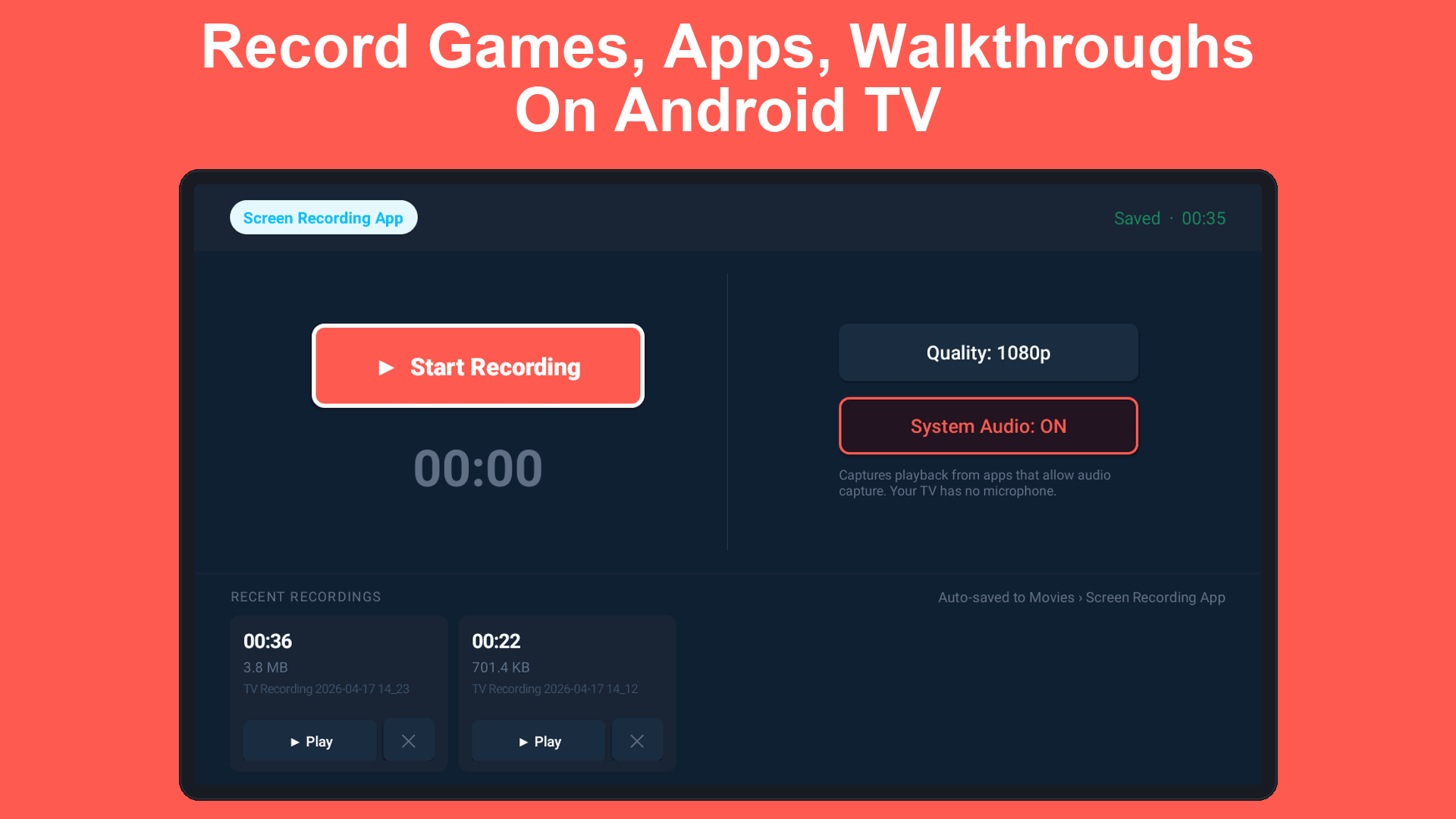
Screen Recording App main screen on Android TV
Main screen with recording controls and recent recordings
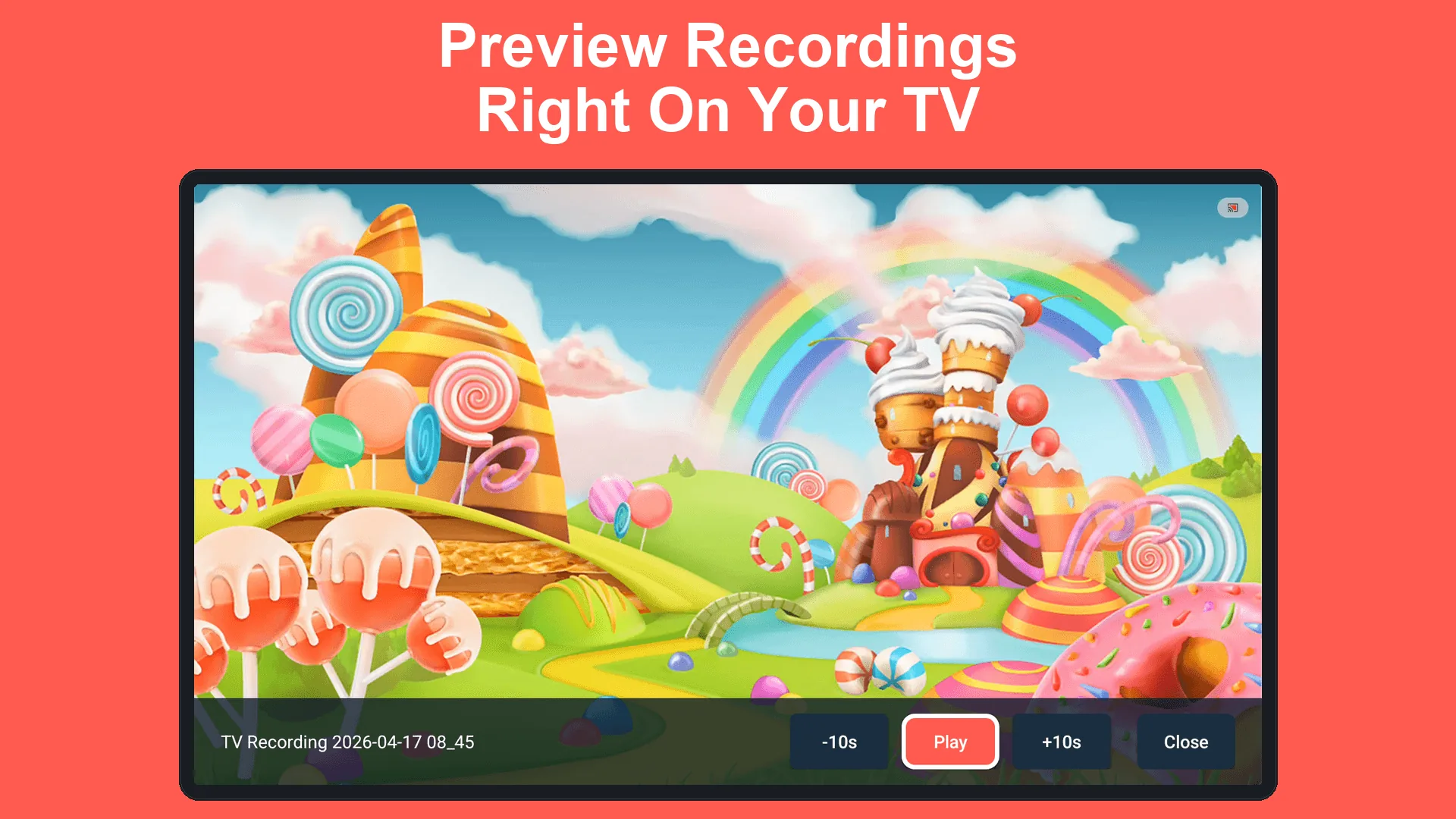
In-app video player on Android TV
Built-in video player for instant playback

2. ADB - Android's built-in developer tool (free, very technical)

ADB (short for Android Debug Bridge) is a tool that developers use to control Android devices from a computer by typing commands. It can record your TV screen, but the setup requires installing developer software on a PC, enabling a hidden settings menu on the TV, and connecting the two over USB or Wi-Fi. If you're comfortable with command-line tools, it works. If that last sentence didn't mean much to you, one of the other methods on this page will be easier.

Free 3-minute limit No audio Computer required

The main limitations: recordings are capped at 3 minutes, there is no audio at all (no game sounds, no voice), and the computer must stay connected for the entire recording. It's a handy tool for developers who need a quick clip for a bug report, but it's not designed for everyday screen recording.

3. HDMI capture card (extra hardware)

An HDMI capture card is a small device that plugs in between your TV and a computer. It takes the video signal coming from your TV's HDMI port and feeds it to the computer, which can then record it. This works with any TV, not just Android TV, and captures exactly what the screen shows.

$15-80 Records audio Best quality Computer required

4. NVIDIA Share (Shield TV only)

NVIDIA Shield TV has a built-in recording feature called NVIDIA Share (previously ShadowPlay). Hold the Home button on the Shield remote and select "Record" from the menu that appears. It records up to 20 minutes with audio.

Free Built in Records audio 20-minute limit Shield TV only

What you can and can't record

Android screen recording has limits set by the operating system and by content providers. These apply regardless of which method or app you use.

Records normally Does not work
Home screen, settings, and menusNetflix, Disney+, and other copy-protected streaming apps
Games and gameplay footageApps that block screen capture (some banking apps, etc.)
Manually installed apps and browsersContent on HDMI inputs (e.g. a game console connected to the TV)
YouTube, Twitch, and most free streaming apps
Internal audio (Android 10+)Internal audio on Android 9 and below

The black screen on streaming apps is not a bug in any recorder. Streaming services use built-in copy protection to prevent their content from being captured. The screen goes black (or purple) in the recording. This is enforced by Android itself and cannot be bypassed by any recording app or method.

Step by step: Recording with an app

Works the same for any TV screen recorder app. Button labels vary, but Android controls the permission prompt so the flow is always this:

  1. Install a screen recorder from the TV Play Store. It appears in your app list on the home screen.
  2. Open the app and choose quality, audio, and duration settings.
  3. Start recording. Android asks you to confirm screen capture - this prompt comes from the system, not the app.
  4. Use your TV normally. Switch to games, apps, or menus while recording runs in the background.
  5. Stop when done - go back to the app and press Stop, or let the auto-stop timer handle it.
  6. Find your recording in the app or in the Movies folder. Play it back, share it, or move it to another device.

Tips for better TV recordings

Popular Android TV devices

Screen recording compatibility depends on the Android version and hardware. Here's what to expect from the most common devices.

Google TV Streamer / Chromecast

Android 12+. Supports screen recording apps from the Play Store. The Google TV Streamer (2024) replaces the Chromecast with Google TV and has more RAM and storage.

NVIDIA Shield TV

Android 11. Has built-in NVIDIA Share for quick clips. Also supports recorder apps from the Play Store. The most powerful streaming device on the market.

Xiaomi Mi Box S

Android 9+. Works with manually installed recorder apps. Some models may need extra setup steps for screen capture permissions. Limited internal storage (8 GB).

Sony Bravia (Android TV models)

Android 10+. Built-in Android TV with decent hardware. Screen recording apps work well. Storage varies by model but is generally more generous than streaming sticks.

TCL / Hisense (Google TV)

Android 12+. Budget-friendly smart TVs with Google TV built in. Newer models run recent Android versions and support recorder apps from the Play Store.

Walmart Onn / budget streaming sticks

Android 12+. Inexpensive, widely available. Screen recording works but storage is tight (8 GB typical). A USB drive is almost mandatory for anything longer than a few minutes.

Frequently asked questions

Common questions about recording on Android TV.

Can I record Netflix or Disney+ on my Android TV?

No. These apps use copy protection that blocks screen capture at the system level. The video portion of the recording will be black or blank. This applies to all recording methods - apps, the ADB developer tool, and capture cards.

Do I need a mouse to record my TV screen?

It depends on the app. Most phone screen recorders that have been manually installed on a TV need a USB mouse because their buttons were designed for touchscreens. Apps built specifically for Android TV work with the standard remote and its arrow buttons.

Does screen recording capture internal audio?

On Android 10 and above, yes. The app needs to request audio capture permission, and the system asks the user to confirm. On Android 9 and older, only microphone audio is available. Most modern TV devices run Android 10 or newer.

How long can I record on a TV?

The built-in developer tool (ADB) caps at 3 minutes. NVIDIA Share caps at 20 minutes. Dedicated recorder apps can record much longer, limited mainly by available storage space. A 1080p recording uses roughly 100-200 MB per minute.

Where are recordings saved?

Usually in the Movies folder on the TV's storage. Some apps let you choose a USB drive instead. You can transfer recordings to a computer by plugging the USB drive in directly, or by connecting the TV to your computer with a USB cable.

Can I record in 4K on my TV?

It depends on your TV and the recording app. Many TVs don't have enough processing power to record in 4K while also running whatever you're trying to capture. 1080p is the realistic maximum on most devices. 720p is the safest choice if you notice stuttering.

My recording is choppy or laggy. What can I do?

TVs have less processing power than phones, especially budget streaming sticks. Try lowering the recording quality to 720p, closing apps you're not using, and restarting the TV before recording. If the problem continues, the device may not be powerful enough for smooth recording.

Is screen recording legal?

Recording your own screen for personal use is legal in virtually all jurisdictions. Recording copyrighted content and redistributing it is not. Recording other people's conversations may require consent depending on local laws.


Get started

If you want to record your TV screen without a PC, a mouse, or a capture card, Screen Recording App is free on Google Play. It works from the TV home screen with a regular remote.

If you need to record a desktop or laptop screen instead, the browser-based recorder does that without installing anything.