Android

How to Record Your Android Screen

Your phone has a built-in recorder. Here's why most people replace it.

Every Android phone running Android 11 or newer has a screen recorder built in. It works for quick clips. But the moment you need longer recordings, a timer, control over quality, or any way to manage your files afterwards, the built-in tool runs out of options fast. This page explains what the native recorder can and can't do, and when a dedicated app makes the difference.

What your phone already has

Since Android 11, most phones include a screen recorder in the Quick Settings panel. Pull down the notification shade, tap the tile, and it starts recording. It's simple and it works - for basic use.

The problem is that "basic" is all it does. Every phone manufacturer implements it slightly differently, the settings are minimal, and there's no recording management at all. Once the file is saved somewhere in your gallery, you're on your own.

Where built-in recording falls short

These aren't bugs - they're just limits of a feature that was designed as a quick utility, not a full recorder.

Native recorder vs. dedicated app

Side by side: what the built-in recorder gives you out of the box, and what a dedicated screen recording app adds.

Feature Built-in recorder Dedicated app
Screen recordingYesYes
Internal audio (Android 10+)YesYes
Microphone audioYesYes
Auto-stop timerNoYes - 5 min to 2 hours
Recording list with detailsNo - files go to galleryYes - duration, size, name
In-app video previewNoYes
Rename recordingsNoYes
Choose save locationNoYes
Quality and resolution optionsLimited - varies by brandFull control
Works the same on every phoneNo - varies by brandYes
Share directly from the appNoYes
No watermarkYesYes
No account or signupYesYes
PriceFreeFree

The recorder Android should have built in

Screen Recording App fills every gap in the table above. Auto-stop timer, recording list, in-app preview, quality controls, save location picker - all included, free, no ads, no watermark, no account, no cloud. Recordings never leave your device.

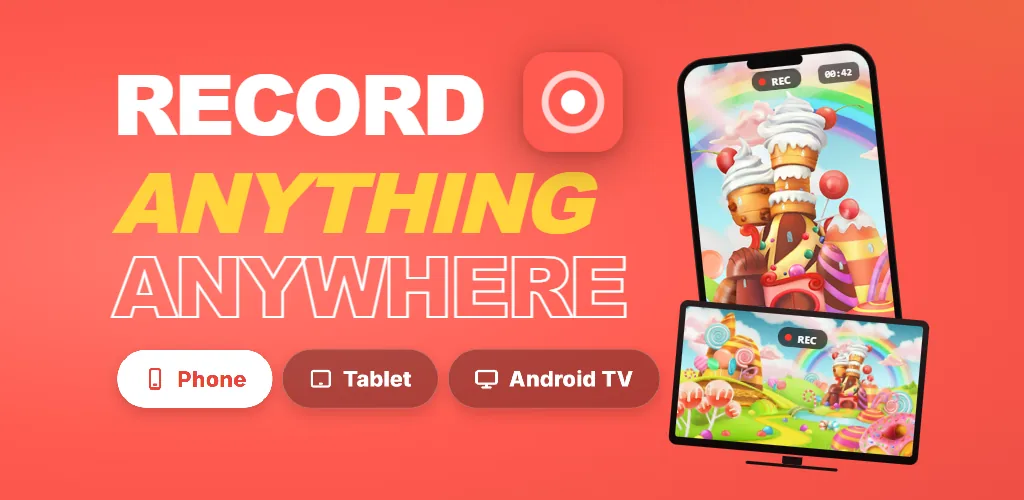
Screen Recording App - record anything anywhere on phone, tablet, and Android TV

Step by step: Recording your screen on Android

Works the same regardless of your Android phone's or tablet's brand. The screen recording permission prompt is controlled by Android, so the flow is consistent across all devices - only the prompt wording varies slightly between Android versions.

  1. Install a screen recorder from the Play Store. Open it from your app drawer.
  2. Choose your settings - quality, audio source (internal, microphone, or both), and auto-stop timer if you want one.
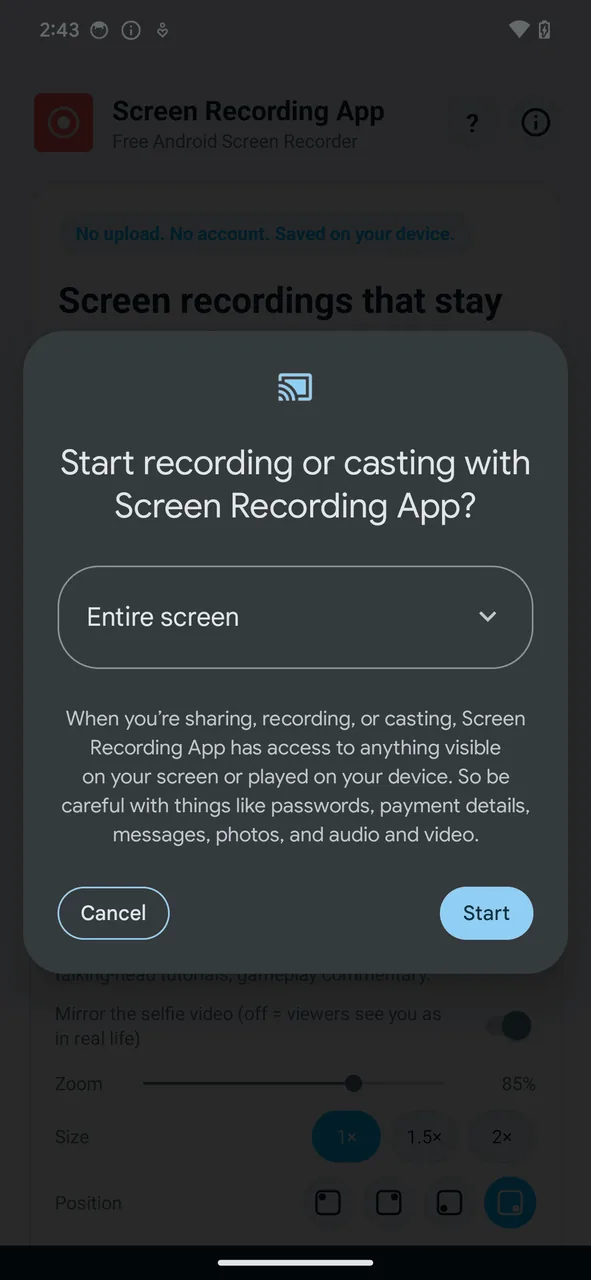
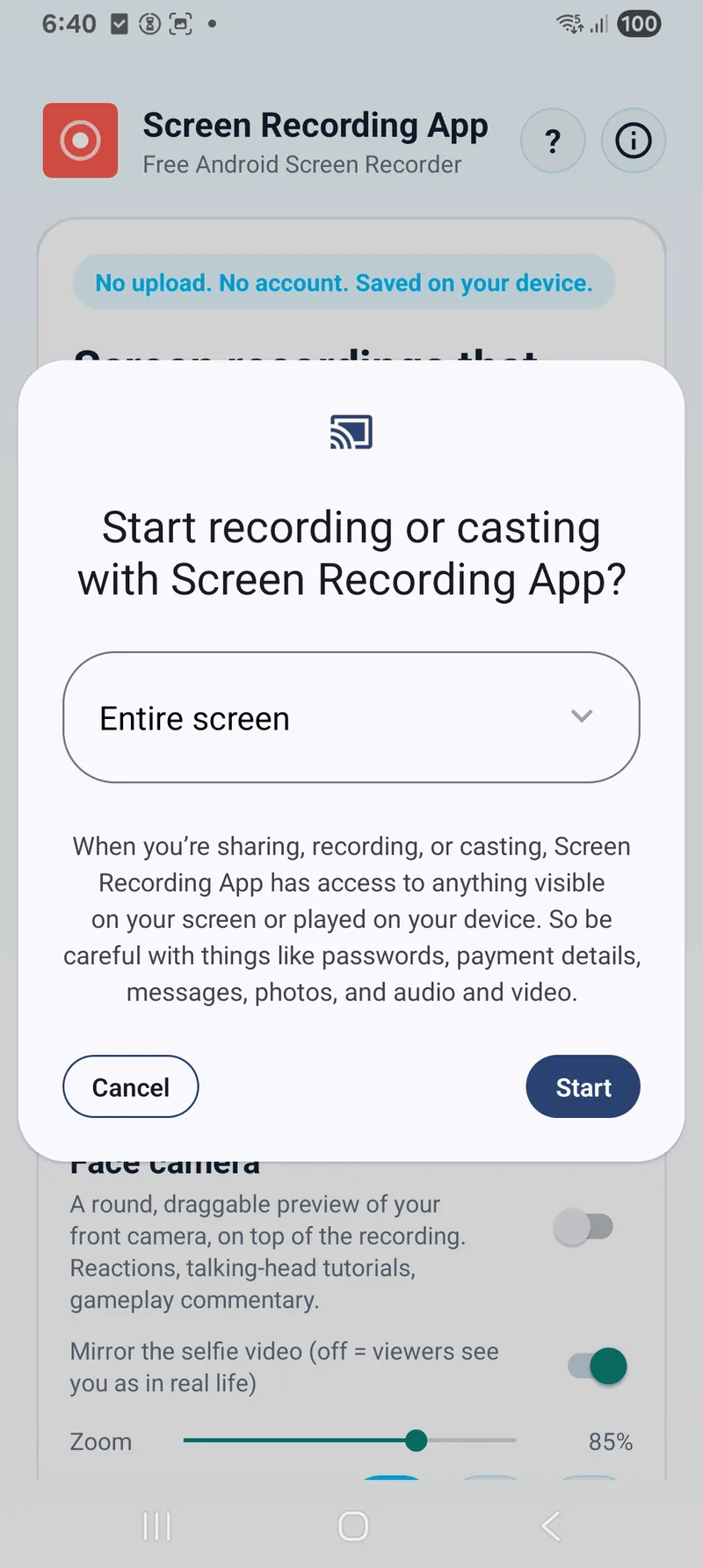
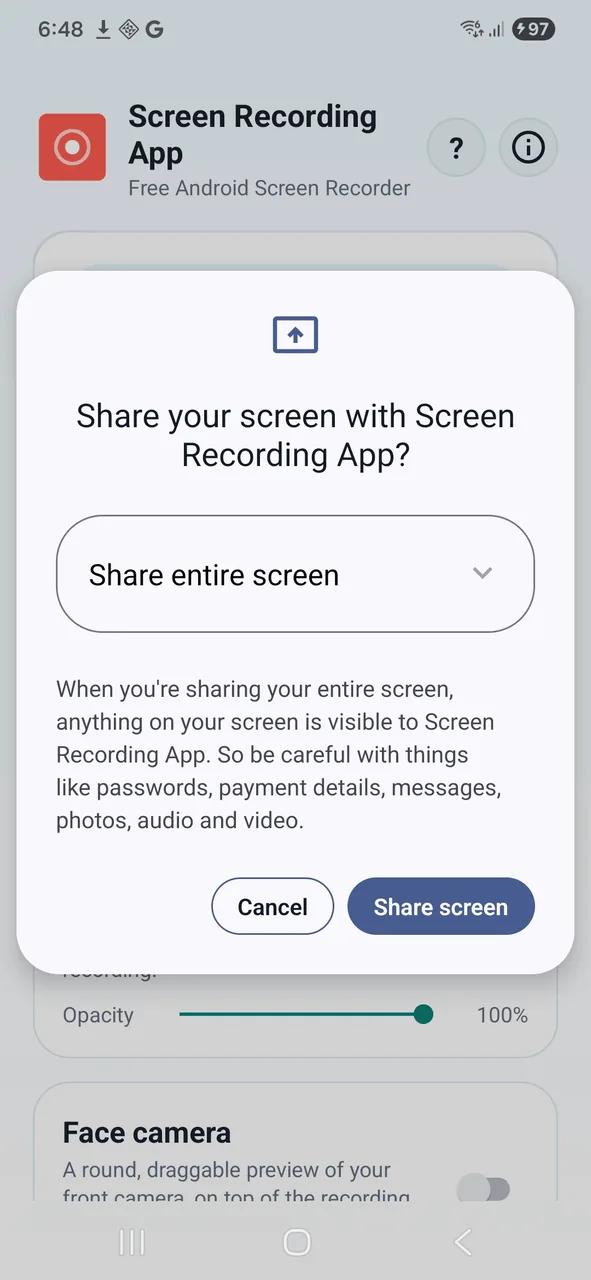
  3. Tap Start Recording. Android shows a system prompt asking you to confirm screen capture. This prompt comes from Android itself, not the app.
  4. Use your phone normally. Switch to whatever you want to record - games, apps, tutorials, settings. The recording runs in the background.
  5. Stop when done. Open the recorder app and tap Stop, pull down the notification shade and use the stop button there, or let the auto-stop timer handle it.
  6. Review your recording in the app. Play it back, share it, rename it, or delete it.

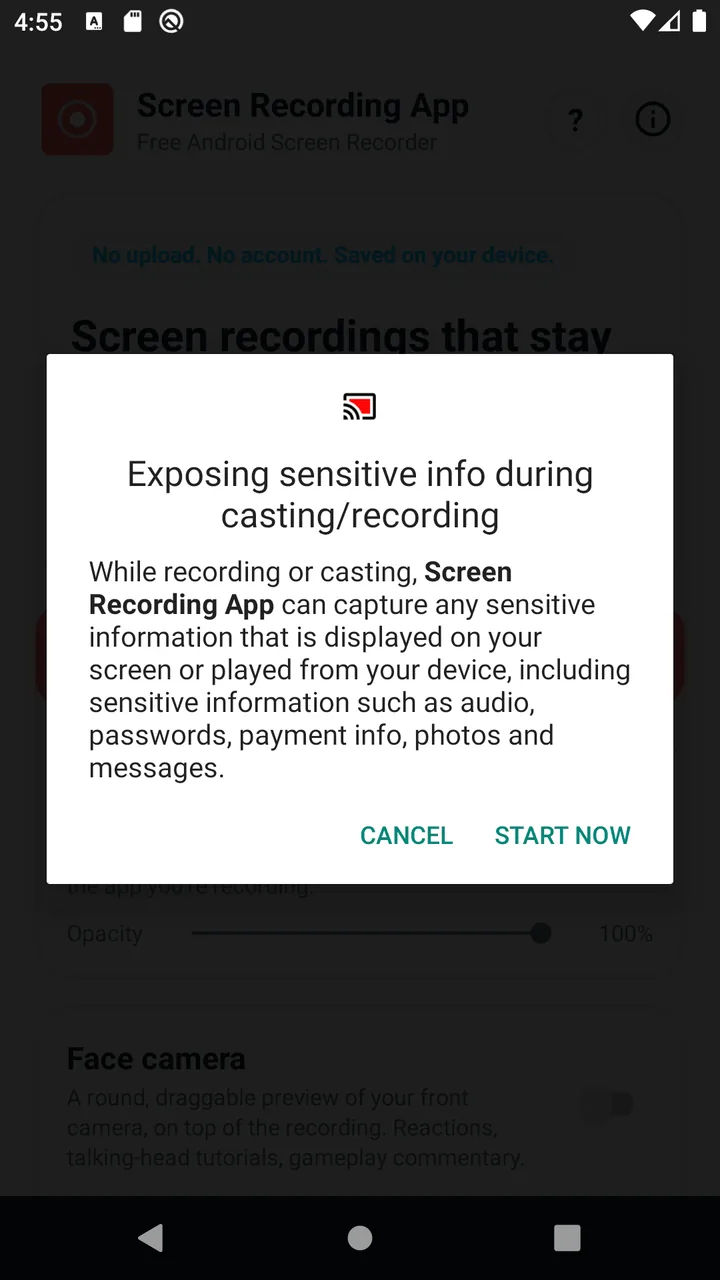
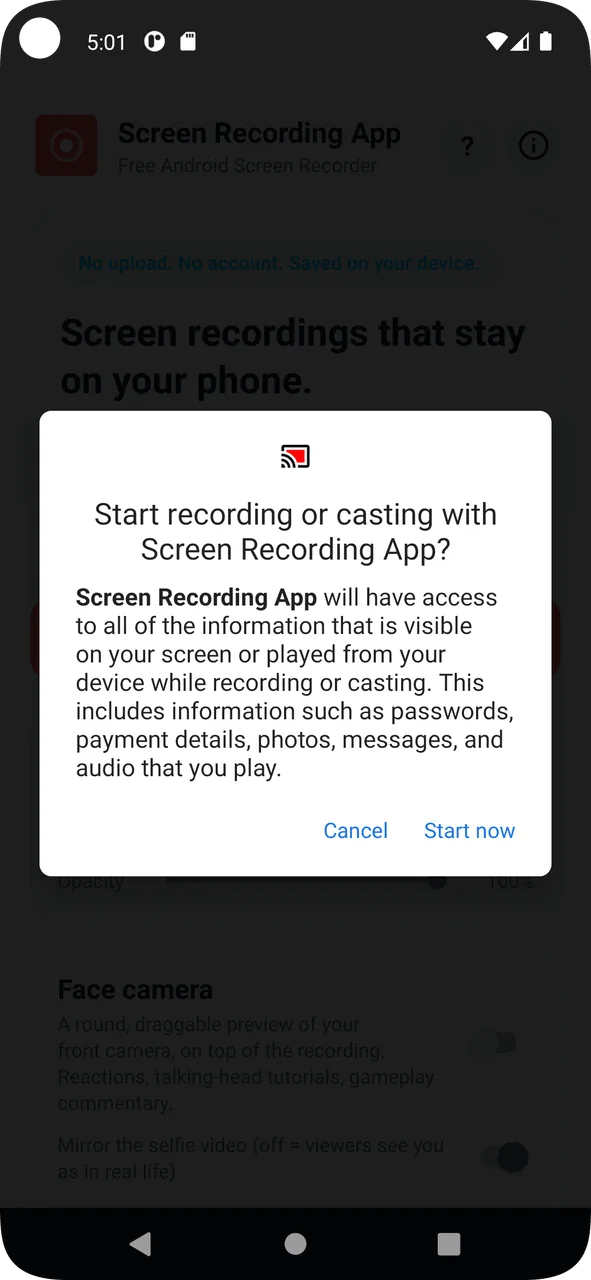
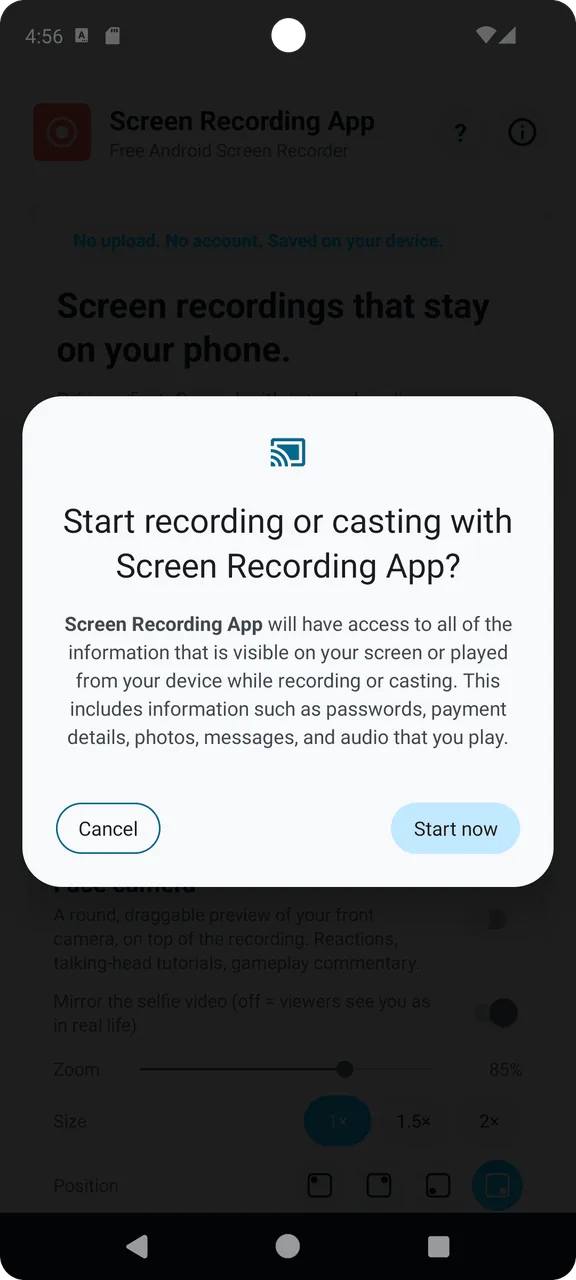
Here is what the permission prompt from step 3 looks like across Android versions. The wording and button style change, but the purpose is the same - Android asks you to confirm before recording starts.

How other recording apps compare

Most screen recorders on the Play Store follow a similar pattern: a free version with limits and a paid version that removes them. Here is what you will typically run into.

Screen Recording App is free with no ads, no watermark, no account, and no cloud uploads. Internal audio, auto-stop timer, recording management, and in-app preview are all included. Recordings stay on your phone.

What you can and can't record on Android

Android controls what can be captured. These limits apply to every recording app, including the built-in one.

Records normally Does not work
Home screen, settings, and notificationsNetflix, Disney+, and other copy-protected streaming apps
Games and gameplay footageApps that block screen capture (banking apps, etc.)
Social media apps and browsersContent protected by DRM
Video calls (your side)Some payment and authentication screens
Internal audio (Android 10+)Internal audio on Android 9 and below

The black screen on streaming apps is a system-level restriction, not a bug. Android enforces copy protection on behalf of content providers. No recording app can bypass this.

Tips for better recordings

Frequently asked questions

Common questions about screen recording on Android phones and tablets.

Does my phone have a built-in screen recorder?

If your phone runs Android 11 or newer, most likely yes. Check your Quick Settings panel (swipe down from the top of the screen). Look for a tile called "Screen Record" or similar. If it's not there, your manufacturer may not have included one, or your phone may be on an older Android version.

Can I record internal audio on Android?

Yes, on Android 10 and above. The recording app needs to request audio capture permission, and Android asks you to confirm. On Android 9 and older, only microphone audio is available. Most phones sold in the last few years run Android 10 or newer.

Why does Netflix show a black screen in my recording?

Streaming apps like Netflix, Disney+, and Amazon Prime use copy protection built into Android. The system blocks screen capture for these apps. The video portion of the recording will be black or blank. This applies to every recording method - apps, built-in recorders, and screen mirroring.

Do screen recorders slow down my phone?

Recording does use some processing power, so demanding games might lose a few frames. For most everyday use - apps, browsing, tutorials - you won't notice a difference. Lowering the recording resolution to 720p reduces the performance impact.

How much storage does a recording use?

It depends on the resolution and what's on screen. At 1080p, expect roughly 1-2 GB for a 10-minute recording. Fast-moving games use more space than static menus. Lowering to 720p cuts the file size roughly in half.

Can I record a phone call?

Screen recording captures the visual content of the screen, but recording phone call audio is restricted on most Android versions. The other party's voice may not be captured, or it may be very quiet. This is an Android system restriction, not a limitation of any particular app.

What's the difference between a screen recorder app and the built-in one?

The built-in recorder handles basic capture. A dedicated app adds features like auto-stop timers, recording management, in-app preview, custom save locations, quality controls, and consistent behavior across all phone brands. Think of it like the difference between the built-in camera app and a third-party camera app.

Do I need to root my phone to record the screen?

No. Android has supported screen recording without root since Android 5 (for apps) and Android 11 (for the built-in recorder). Any modern screen recorder app works without root or any special setup.

Does screen recording work on tablets?

Yes. Android tablets work the same as phones for screen recording. The only difference is the recording resolution, which matches the tablet's screen resolution. Most tablets produce 1080p or higher recordings.

Is it safe to use a third-party screen recorder?

That depends on the app. Look for a recorder that doesn't require an account, doesn't upload recordings to the cloud, and doesn't ask for unnecessary permissions. If an app wants access to your contacts, location, or phone state to record your screen, that's a red flag.


Get started

If you want a screen recorder that works the same on every phone, captures internal audio, doesn't show ads, and keeps everything on your device, Screen Recording App is free on Google Play.

Need to record a computer screen instead? The browser-based recorder works on any desktop or laptop without installing anything.

Have an Android TV or streaming stick? See the Android TV recording guide for methods that work with a remote.